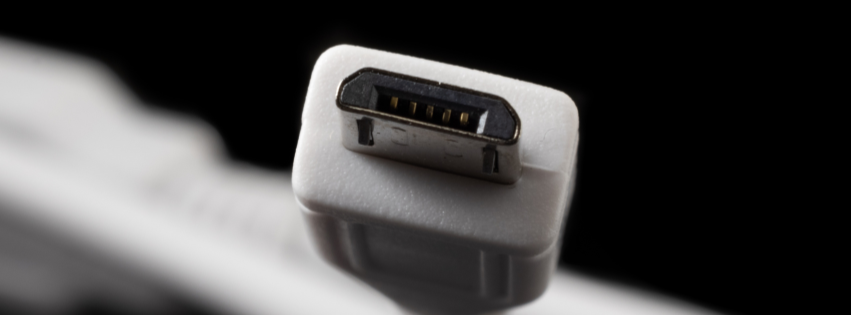
While consumer electronics’ usage of USB data cables has become more homogenized than the wide variety of USB connectors seen in the 2000s, the difference between one USB cable and another can still be confusing to understand for both consumers and those in the tech industry.
Some are only able to transfer data, some are only able to transfer power to batteries, and others can do both but it’s often not immediately clear which ones can do which function, even within a single connector type like USB-C which can have vast variations in internal wires and transfer speeds.
There are also differences in data transfer speed and power transfer efficiency that can make a massive difference in whether a cable will fit your needs. This blog post is intended to be a consumer-friendly guide for identifying the differences for Micro USB and the other main USB connector types in use today, and how to test a cable if a visual inspection isn’t sufficient.
Common Signs That USB Cable Can Transfer Data
- Micro USB Connector
– Micro USB connectors typically have up to 5 internal pins, but some only use 4. USB power only variations will often omit any wiring for the 2nd and 3rd pins (D- and D+) since they are only necessary for data transfer.
– The standard USB trident logo printed on the cable or its connector shell is an indicator that the cable should be able to transfer data.
– You can test the cable’s functionality by plugging it into a computer, and test its speed using the Command Prompt tool “winsat” on Windows PCs. Some cables have limited data transfer and will be insufficient for moving large files quickly. - USB-A Connector
– The most common USB type often has an easy indicator of whether the cable is capable of transferring data, which is a colored insert inside the connector. Modern 3.0 types usually have a blue or teal colored insert, while older 2.0 types would sometimes have black and white. You can test a USB cable’s actual transfer speed by plugging it in to a computer running Windows, and using the Command Prompt tool “winsat”.
– USB 3.0 connectors have 9 pins in a staggered position, while 2.0 only have 4 pins so a visual inspection of the connector may be enough to tell what you need to know.
– Some USB-A connectors will also have an SS symbol or trident icon printed on the connector shell, indicating “SuperSpeed” which means it should be a 3.0 connector and therefore capable of data transfer. - USB-C Connector
– USB-C connectors may have an SS or Thunderbolt logo on them, which indicates SuperSpeed or Thunderbolt tech that provides fast data transfer.
– USB-C cables may also have their transfer speed printed on them, i.e. 10 Gbps (you can always test this manually using a Windows PC as noted before.)
– There is no immediately obvious indicator for whether a USB-C cable provides data transfer capabilities from the connector itself, so other methods are often needed to identify whether they can transfer data, and at what speed.
– Data cable builds are typically thicker due to requiring additional internal wiring for data and power transfer, whereas charge-only cable configurations can be thinner and sleeker with potentially only one internal wire required.
Types of Micro USB Connectors
- Micro-A: Rectangular plug style that is mostly out of circulation nowadays. It was previously used for host device applications, like connecting a flash drive to a mobile phone.
- Micro-B: The most widely used variant of Micro USB cables, with a trapezoidal shape. Most commonly built as charge-only cable for small devices like smartphones, controllers, digital cameras, and USB power banks but has become less used after the advent of USB-C.
- Micro-AB: An unusual dual-purpose port, rather than being its own connector type: a Micro-AB port is simply designed to connect to both Micro-A and Micro-B connectors. However since the Micro-A was mostly overtaken by the Micro-B, these ports are unnecessary in most applications.
- Micro-B 3:0: A wider variant of the original Micro USB, capable of USB 3.0 data transfer speeds for applications like connecting to external hard drives. If your Micro USB cable is able to transfer data, it’s very likely the Micro-B 3.0 variation. However even this more modern variation is being used much less in new products, typically in favor of USB-C.
In need of custom USB cable manufacturing for your factory, product or facility? Contact us at [email protected] and send us your cable drawing, or any required NDAs.